Savings Goal Tracker Spreadsheet with Progress Bars
Track up to 10 savings goals, log deposits, and see exactly how much to save per month to hit each target date.
$6Buy on Gumroad – instant download
How much do I need to save per month for a goal?
The formula is simple: (goal amount − amount already saved) ÷ months until the target date.
Example: you want a $3,000 emergency fund by the end of next August, you already have $600, and there are 10 months left: ($3,000 − $600) ÷ 10 = $240 a month.
It gets harder when you have several goals at once (emergency fund, holiday, car, a new laptop), because each needs its own monthly amount and they all compete for the same money. Tips:
- Rank goals by deadline and importance; fund the emergency fund first.
- Automate a transfer on payday for the total monthly amount.
- Recalculate whenever you miss or exceed a month, so the target date stays honest.
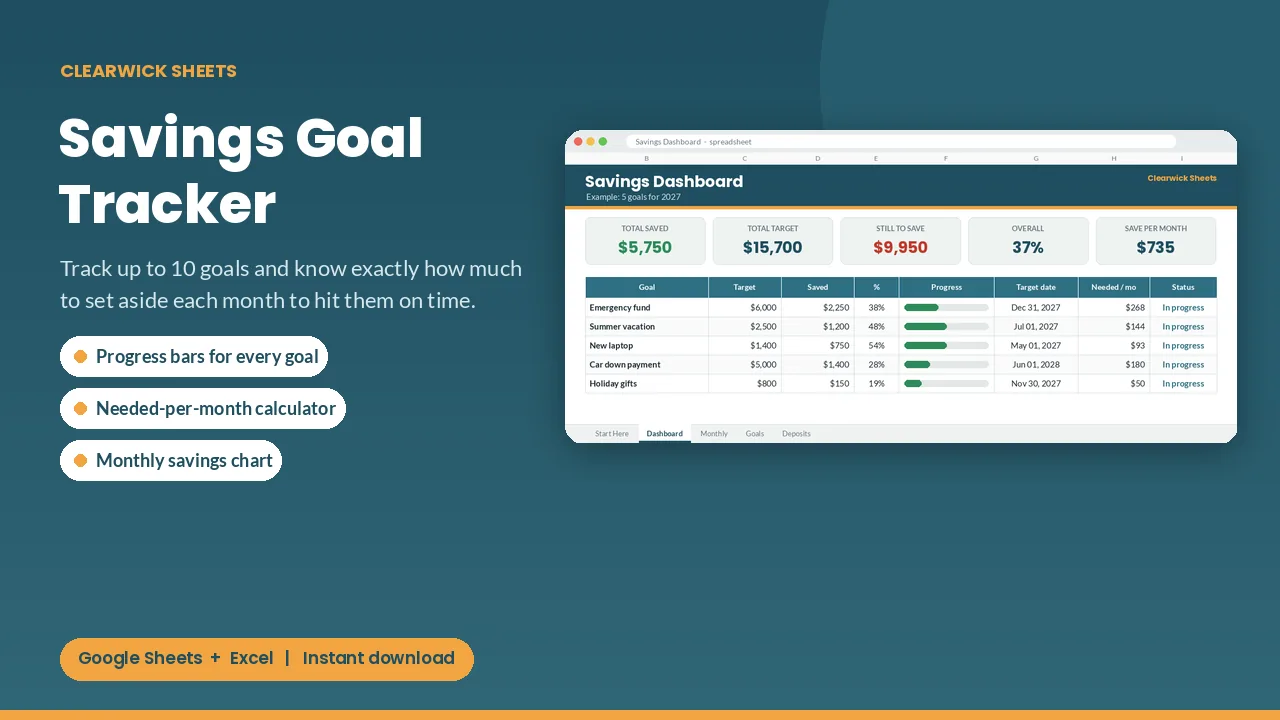
The tracker recalculates the per-month amount for up to 10 goals every time you log a deposit, and shows progress bars so you can see what's on track.
What you get and how to use it
Emergency fund, vacation, new car: see every goal fill up, and know exactly what to set aside each payday.
What's inside
- Dashboard: total saved, total target, overall progress, goals completed, and how much to save per month
- Per goal: saved, remaining, progress bar, target date, months left, needed per month, and status (in progress, complete, or past the target date)
- Deposits log: 500 rows with a goal dropdown; withdrawals allowed
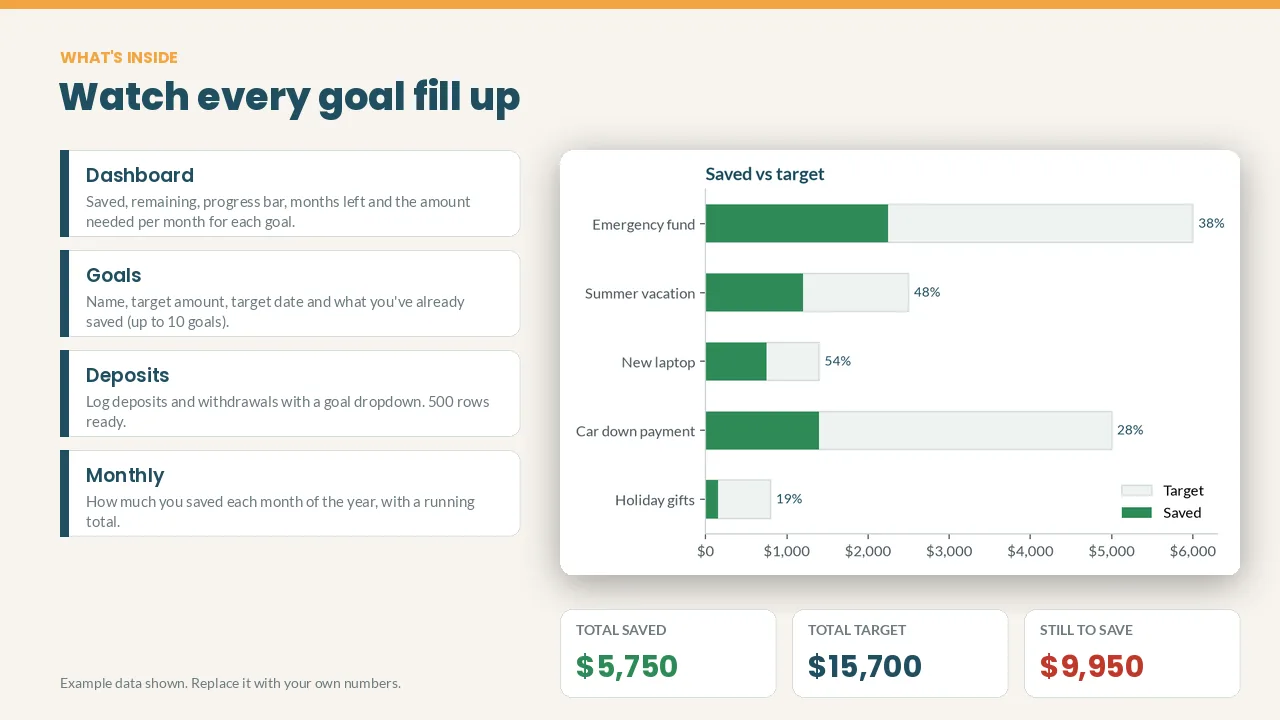
- Monthly tab: savings per month with a running total and chart
- Saved vs target chart
How it works
- Add your goals, target amounts and dates.
- Log each deposit.
- Check the Dashboard to see your progress.
Cream cells are for your inputs; everything else calculates itself. The example data shows you how it works, and you can clear it in a minute.
Works with: Google Sheets (free) and Microsoft Excel 2016 or newer / Excel 365. Not tested on Apple Numbers.
Format: 1 × .xlsx file, delivered instantly. To use it in Google Sheets: upload it to Google Drive, open it, then File > Save as Google Sheets.
Currency: shown in $. You can switch it to £, € or any currency with Format > Number.
FAQ
- Do I need a paid app? No. A free Google account is enough.
- Can I edit categories? Yes. Every name and colour can be changed.
- Is this financial advice? No. It's an organizing tool that does the math for you.
- Refunds: Because it's a digital download, contact me first if anything doesn't work and I'll fix it or refund you.
For personal use. Please don't resell or share the file.
Get the Savings Goal Tracker – $6
How this was made: designed by Clearwick Sheets with AI-assisted tools; every formula was tested in Google Sheets before release. Example data in the screenshots is fictional. This is an organizing tool, not financial advice.