Debt Payoff Planner: Snowball vs Avalanche Spreadsheet
Enter your debts and get your debt-free date, total interest, payoff order, and a side-by-side Snowball vs Avalanche comparison.
$9Buy on Gumroad – instant download
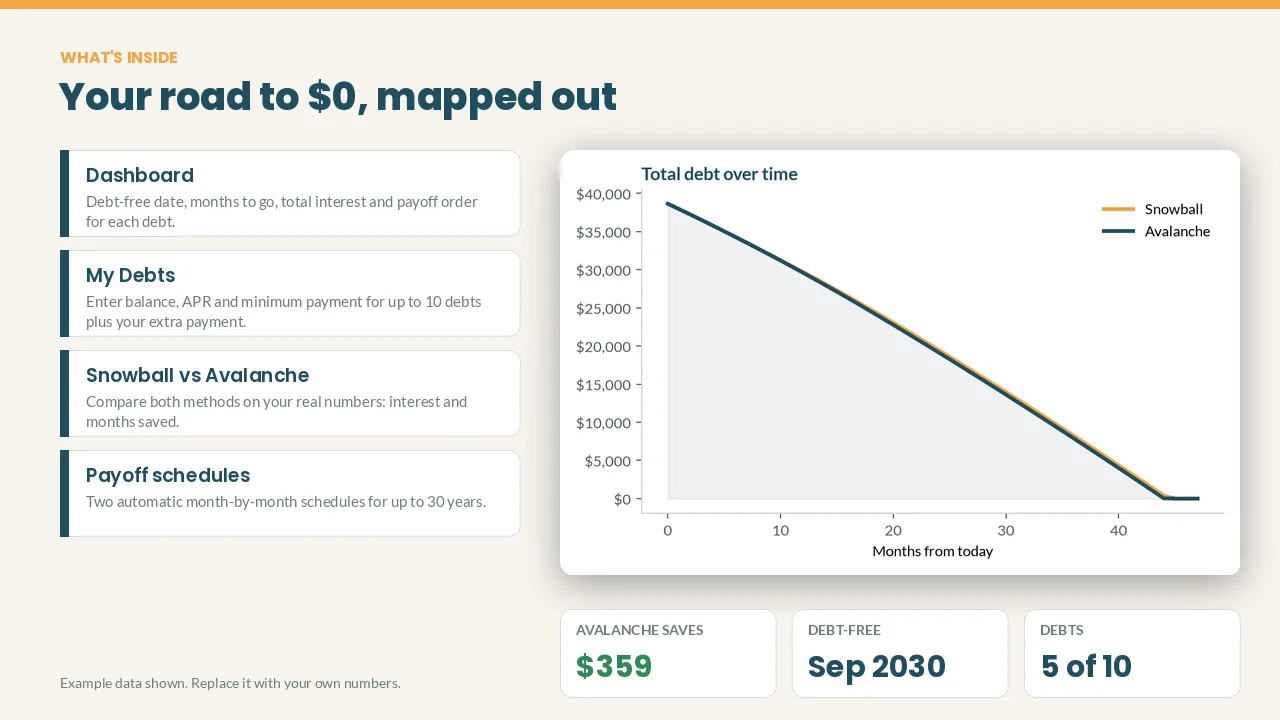
Debt snowball vs debt avalanche: which should you use?
Both methods have you pay the minimum on every debt and put every extra dollar on one target debt. When it's paid off, its payment rolls onto the next one. The only difference is the order:
- Snowball: smallest balance first. You clear whole debts sooner, which keeps many people motivated.
- Avalanche: highest interest rate (APR) first. Mathematically this always costs the same or less total interest.
Rule of thumb: if your highest-APR debt is also large, the avalanche usually saves real money; if your balances are similar, the gap is often small and the snowball's quick wins may be worth it. The only way to know for your debts is to run both on your actual balances, APRs and minimums.
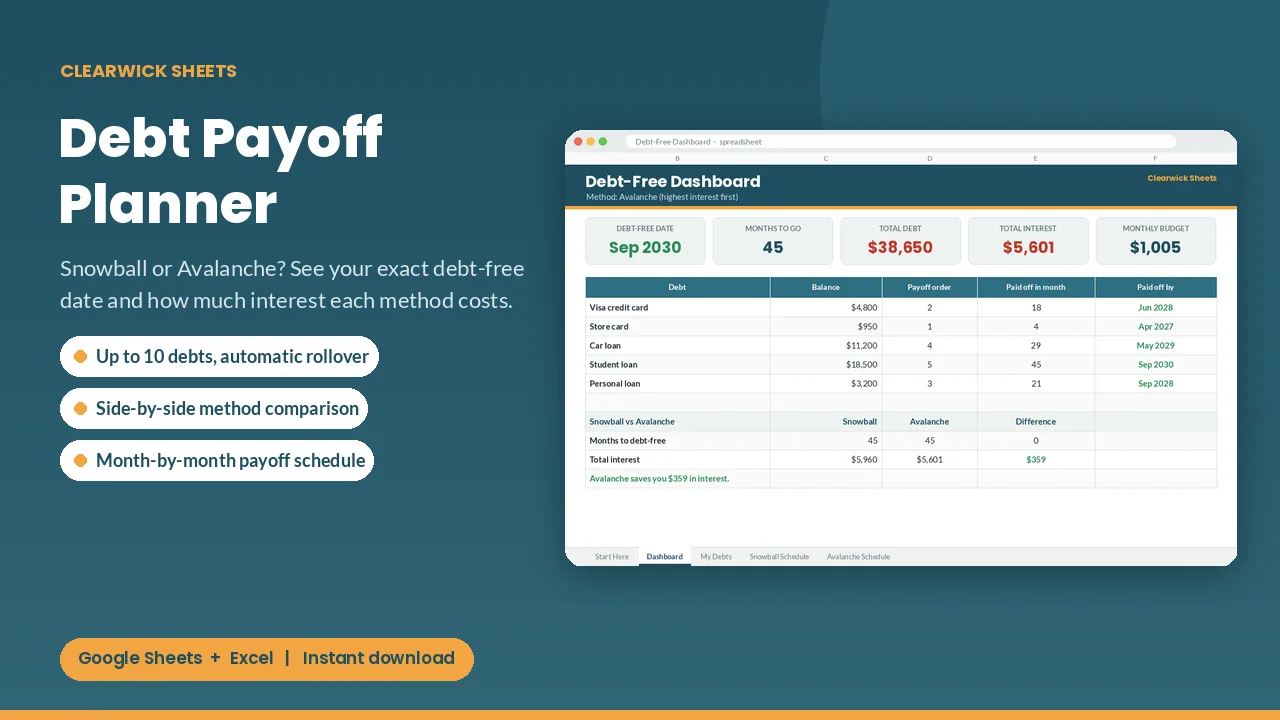
That's exactly what this planner does: enter up to 10 debts and your extra monthly payment, and it shows both payoff schedules, your debt-free date for each and the interest difference side by side.
What you get and how to use it
When will I be debt-free, and which method saves me more? This planner answers both with your real numbers.
What's inside
- Debt-free dashboard: debt-free date, months to go, total interest, total paid and monthly budget
- Snowball vs Avalanche comparison: interest and months saved with each method, in plain English
- Payoff plan per debt: order, the month it's paid off and the date
- Automatic rollover: when a debt is cleared, its payment moves to the next one
- Up to 10 debts (credit cards, car, student or personal loans) plus your extra monthly payment
- Two month-by-month schedules (up to 30 years) and a 'total debt over time' chart
How it works
- Enter each debt's balance, APR and minimum payment.
- Add the extra amount you can pay each month.
- Pick Snowball or Avalanche on the Dashboard.
Cream cells are for your inputs; everything else calculates itself. The example data shows you how it works, and you can clear it in a minute.
Works with: Google Sheets (free) and Microsoft Excel 2016 or newer / Excel 365. Not tested on Apple Numbers.
Format: 1 × .xlsx file, delivered instantly. To use it in Google Sheets: upload it to Google Drive, open it, then File > Save as Google Sheets.
Currency: shown in $. You can switch it to £, € or any currency with Format > Number.
FAQ
- Do I need a paid app? No. A free Google account is enough.
- Can I edit categories? Yes. Every name and colour can be changed.
- Is this financial advice? No. It's an organizing tool that does the math for you.
- Refunds: Because it's a digital download, contact me first if anything doesn't work and I'll fix it or refund you.
For personal use. Please don't resell or share the file.
Get the Debt Payoff Planner – $9
How this was made: designed by Clearwick Sheets with AI-assisted tools; every formula was tested in Google Sheets before release. Example data in the screenshots is fictional. This is an organizing tool, not financial advice.